Genmoji Explained: How Apple's AI Emoji Generator Actually Works
August 10, 2026 · Bas Hennekam
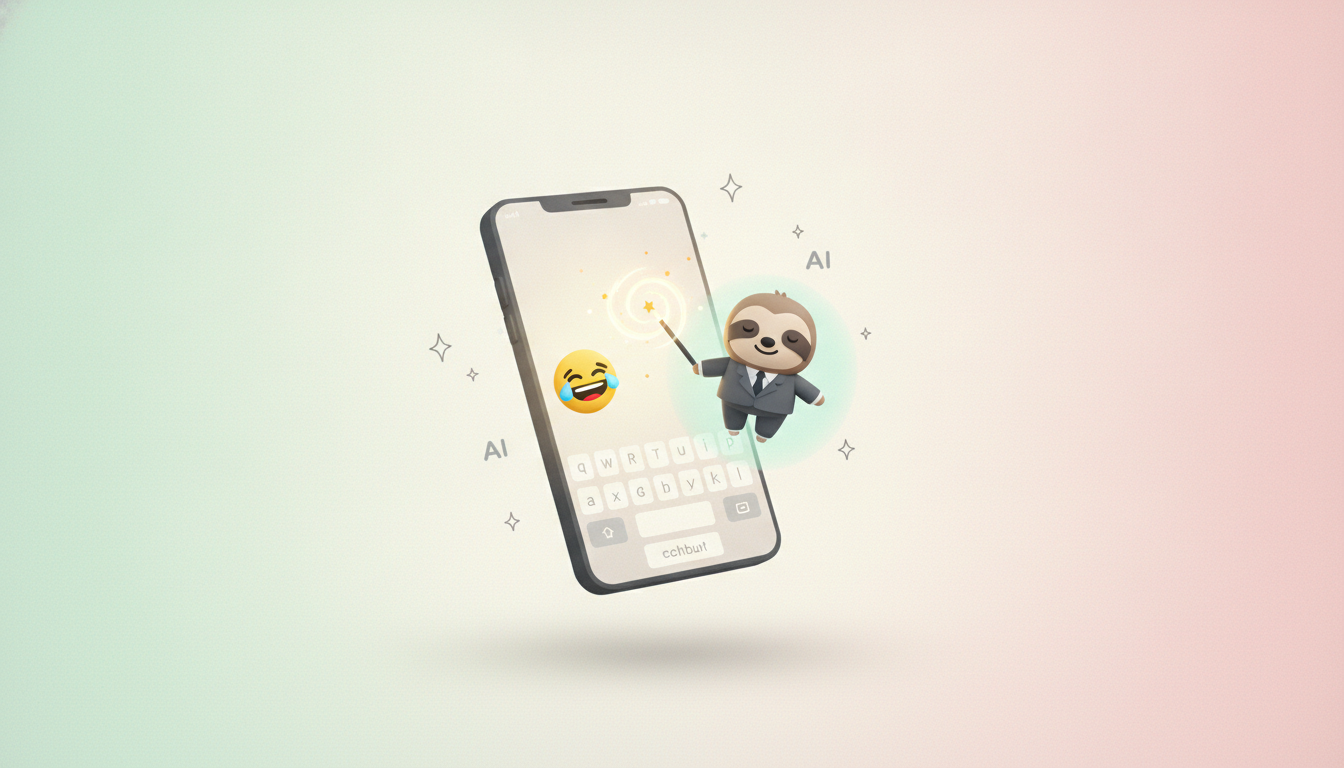
Type "a sloth wearing a tiny business suit," wait a few seconds, and watch your phone hand you an emoji that has never existed before. That is Genmoji, Apple's generative AI emoji tool, and two years after launch it has quietly become one of the most used features hiding inside the emoji keyboard. 🦥👔
What Genmoji Actually Is
Genmoji is an Apple Intelligence feature that turns a text description, or a photo, into a brand new emoji-style image. It debuted at WWDC in June 2024 and shipped to the public with iOS 18.2, iPadOS 18.2 and macOS Sequoia 15.2 in December 2024. Unlike the roughly 3,800 emojis defined by the Unicode Consortium, a Genmoji is not a standardized code point that every platform renders. It is a personal, on-device image that lives in your keyboard and your conversations, closer to a custom sticker than an official emoji. 🎨
The distinction matters. A real emoji like 😂 or ❤️ works the same everywhere because it is backed by a Unicode standard. A Genmoji only looks the same for you and the people you send it to, since it is generated fresh from Apple's diffusion model rather than pulled from a shared library.
How It Works, Step By Step
Creating one is built directly into the system keyboard on iPhone, iPad and Mac, so there is no separate app to open.
- Open the emoji keyboard in Messages, Notes, Mail or any app that accepts emoji
- Type a description in the search bar, such as "a corgi surfing a wave"
- Tap "Create New Emoji" just below the search field
- Apple Intelligence generates several variants in a few seconds, and you scroll through them to pick a favorite
- Tap "Add" in the top-right corner to save it permanently to your keyboard for reuse
You can also generate a Genmoji of a real person by selecting a photo or a contact, which is how "you, but as a tiny cartoon astronaut" became one of the feature's most-used tricks. Finished Genmoji work not just as inline text characters but also as Stickers and Tapbacks, so you can react to a message with a custom image instead of a stock reaction. 📸
What Changed in 2026
Genmoji's first version was fun but rigid: one prompt, one batch of results, start over if you did not like them. That changed with iOS 26, which gave the tool a broader visual range and better prompt understanding. iOS 27, rolling out through the second half of 2026, goes further with two updates worth knowing about.
"Describe a Change" Editing
Instead of regenerating an entire Genmoji from scratch when it is almost right, iOS 27 adds an iteration step. You describe what to change, "make the hat red" or "add sunglasses," and the model edits the existing image rather than starting over. That keeps the parts you liked intact while fixing the one detail that was off, a workflow much closer to how people actually iterate on AI images elsewhere.
Suggested Genmoji
The bigger shift is proactive suggestions. iOS 27 and iPadOS 27 can propose a Genmoji automatically, built from your camera roll or from phrases you type often, so the feature surfaces itself instead of waiting for you to remember it exists. Apple has framed this as optional, a response to the fact that most Genmoji usage came from a small set of power users while a lot of people simply forgot the tool was there. 💡
Genmoji vs the Handcrafted Alternative
Google took a different path years earlier with Emoji Kitchen, launched in 2020, which lets Android and Gboard users mash up two existing emojis into a hybrid sticker. The philosophy is the opposite of Genmoji: Emoji Kitchen results are hand-illustrated by designers ahead of time, so every combination is curated and consistent, while Genmoji generates something new and somewhat unpredictable on the spot. One trades flexibility for polish, the other trades polish for range. We will put the two head to head in a full comparison soon, but the short version is that Genmoji can make literally anything you can describe, while Emoji Kitchen can only remix what already exists.
Getting Good Results
A few practical habits make a real difference in output quality:
- Be specific about the object, not just the vibe. "A happy golden retriever wearing a party hat" outperforms "a fun dog"
- Add one clear modifier at a time. Color, accessory, or action work better than three ideas crammed into one prompt
- Use the photo option for people. Genmoji handles a known face far more reliably than trying to describe someone in words
- Save the ones you will reuse. Tapping "Add" is the only way a Genmoji survives past the current conversation
- Lean on the iOS 27 edit step once it lands. It is faster than re-rolling the whole prompt for a single tweak
The Catch: It Is an Apple-Only Language
The biggest limitation has nothing to do with image quality. A Genmoji you send only renders as a proper custom image for recipients on a recent Apple device with Apple Intelligence enabled. Everyone else gets it as a static image attachment or, in some cases, nothing recognizable at all. That is a meaningful difference from a real emoji like 🎉, which every platform can render, even if the artwork differs slightly between vendors. Genmoji is expressive and fast, but it is a closed-garden feature, not a new addition to the Unicode standard.
What's Next
Genmoji has gone from a launch-day novelty to a habit for a meaningful share of iPhone users in under two years, and the iOS 27 changes suggest Apple wants that habit to spread further rather than stay a power-user trick. Google, Samsung and the open-source emoji ecosystem have not shipped a true generative competitor yet, which leaves Apple with a real head start in this specific corner of digital expression. Next up on the blog: a detailed side-by-side of Genmoji and Emoji Kitchen, testing the same prompts on both to see which approach actually produces something you will want to send. 🚀